How to Use JSON-LD for Blog Schema in Framer CMS
Blog

If you’ve spent any time working with Framer’s CMS, you’ll know how clean and intuitive it feels. But the moment you add structured data, things get a little delicate.
JSON-LD is not forgiving. One missing comma, one unescaped character, or one misplaced variable, and Google silently tosses your entire Schema aside.
I went through this myself while setting up the Schema for my blog. The experience was a mix of small wins, quiet failures, and a couple of “why is Google still yelling at me?” moments. This guide sums up everything I learned, with practical steps you can follow whether you’re just starting your blog or improving an existing one.
Why Structured Data Actually Matters
Structured data, or Schema, gives search engines a clearer understanding of your content. It’s not magic, and it’s not about tricking Google. It’s simply metadata that describes what your page contains.
For blog posts, Schema can highlight:
the title of the article
the author
the publication date
the featured image
the URL of the article
and the overall type of content
Google interprets all of this to create richer search listings and to better categorize your website.
While your site can live without Schema, adding it brings consistency. It’s especially helpful when you write frequently, because it ensures every article communicates the same structure behind the scenes.
Where Framer Puts Schema
Framer gives you two different entry points for adding structured data. Both work, but they’re designed for different levels of control.
1. SEO → Structured Data (Visual Panel)
This is the built-in, field-based interface where you can map each property manually.
It’s ideal for simple setups, especially if you prefer not to touch code.
But it quickly becomes limiting the moment you need nested objects such as:
"author": {
"@type": "Person",
"name": "Your Name",
"url": "Your Profile"
}
For anything beyond the basics, you’ll want the second option.
2. Custom Code → Head (Full Control)
This is where you can paste a complete JSON-LD script and pull values from the CMS using Framer’s notation:
{{FieldName | json}}
This is the safest way to insert dynamic values, because | json escapes the content correctly.
If you skip it, and your title or description contains quotes, line breaks, or symbols, your Schema quietly breaks.
This happened to me with a description that included a quote. Everything looked normal in Framer, but Google didn’t recognize the Schema until I used the | json filter.
The Schema Template That Finally Worked
After testing different patterns and fixing a few silent errors, this is the exact JSON-LD block I use for my articles:
<script type="application/ld+json">
{
"@context": "https://schema.org",
"@type": "BlogPosting",
"headline": {{Title | json}},
"description": {{Description | json}},
"image": {{Image | json}},
"datePublished": {{Date | json}},
"dateModified": {{Date | json}},
"author": {
"@type": "Person",
"name": "Josué Somarribas",
"url": "https://www.linkedin.com/in/josuesb/"
},
"url": "https://josuesomarribas.com/blog/{{Slug}}"
}
</script>
A few things to note:
The @type is BlogPosting, which is more specific than “Article”.
All CMS fields go through the JSON filter.
The author has both a name and a URL, which removes one of Google’s “optional but recommended” warnings.
The final URL uses the article slug, so everything stays dynamic.
This setup keeps things predictable and easy to maintain, even if your blog grows to dozens of posts.
Common Issues (and How I Fixed Them)
1. Missing Commas
A tiny mistake, but it breaks everything.
JSON-LD is essentially a JavaScript object. If you forget a comma after a field, the whole Schema becomes invalid.
I missed one right after "name": "Josué Somarribas". Google rejected the Schema until I fixed it.
2. Missing | json
Framer will insert CMS values without filtering them, but that’s risky.
Any unusual character may close a string early and invalidate the rest of the script.
This filter is your safety net:
{{Title | json}}
3. Not Matching the Actual URL Structure
If your blog lives at:
https://yourdomain.com/blog/post-name
Your Schema must reflect that exactly.
A mismatch between the schema URL and the real published URL will not break the Schema, but Google considers it misleading and may ignore the field.
4. Testing Preview Instead of Live
Framer’s preview mode does not inject your structured data in full.
Google will only detect Schema on the published version of the page.
So always test using your live URL.
5. Ignoring Google’s “optional but recommended” fields
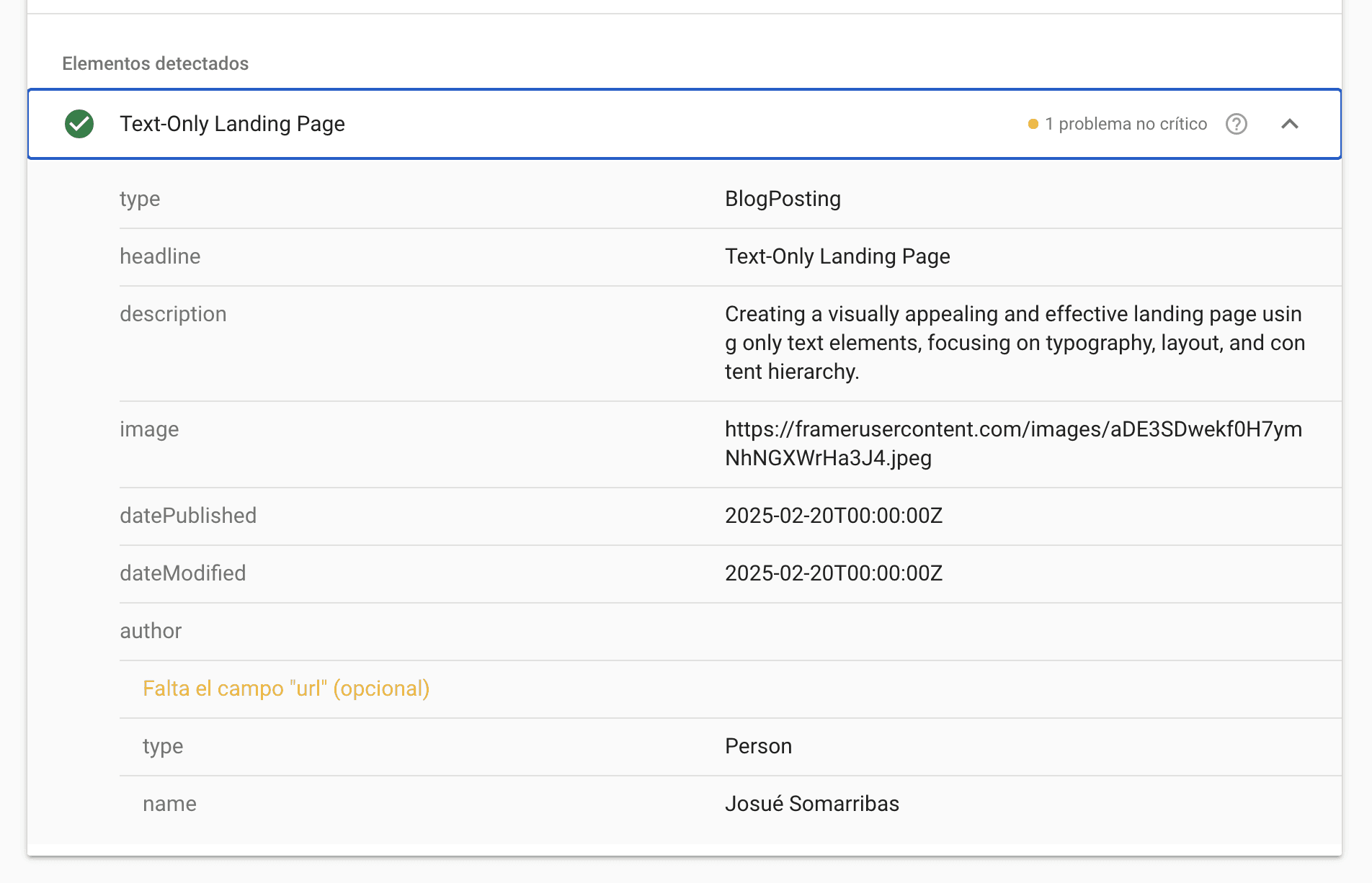
Google often flags missing optional fields such as "url" inside the author block or "publisher" details. These aren’t errors, but they improve the quality and completeness of your structured data.
In practice, adding fields like:
"author": {
"@type": "Person",
"name": "Josué Somarribas",
"url": "https://www.linkedin.com/in/josuesb/"
}
reduces warnings and gives Google a more complete understanding of the content. It’s worth filling these out whenever possible.
How to Validate Your Schema
Once your script is in place, use these two tools:
Google Rich Results Test
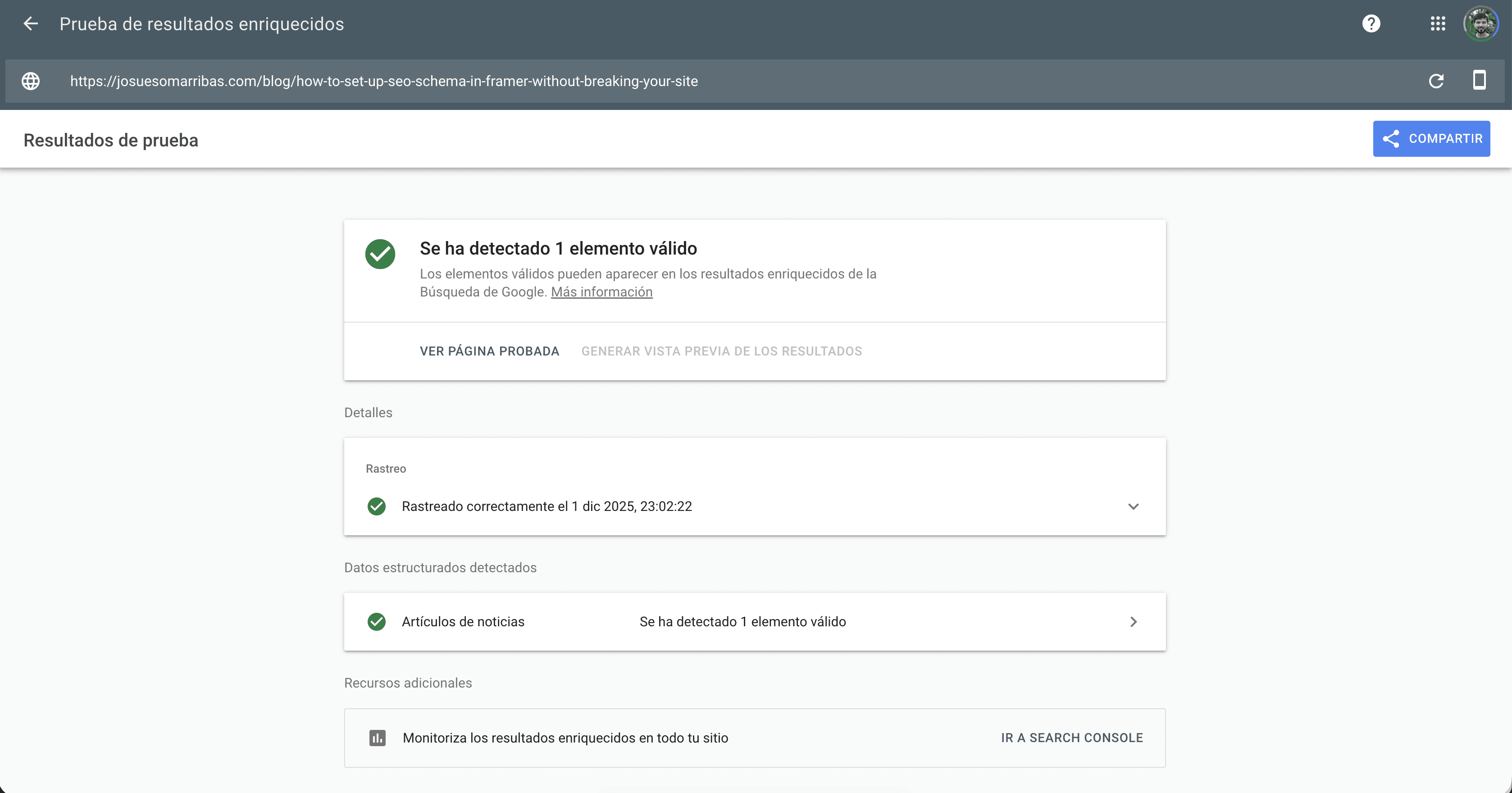
https://search.google.com/test/rich-results
This tells you whether Google understands your Schema and whether it’s eligible for rich results.
Schema.org Validator
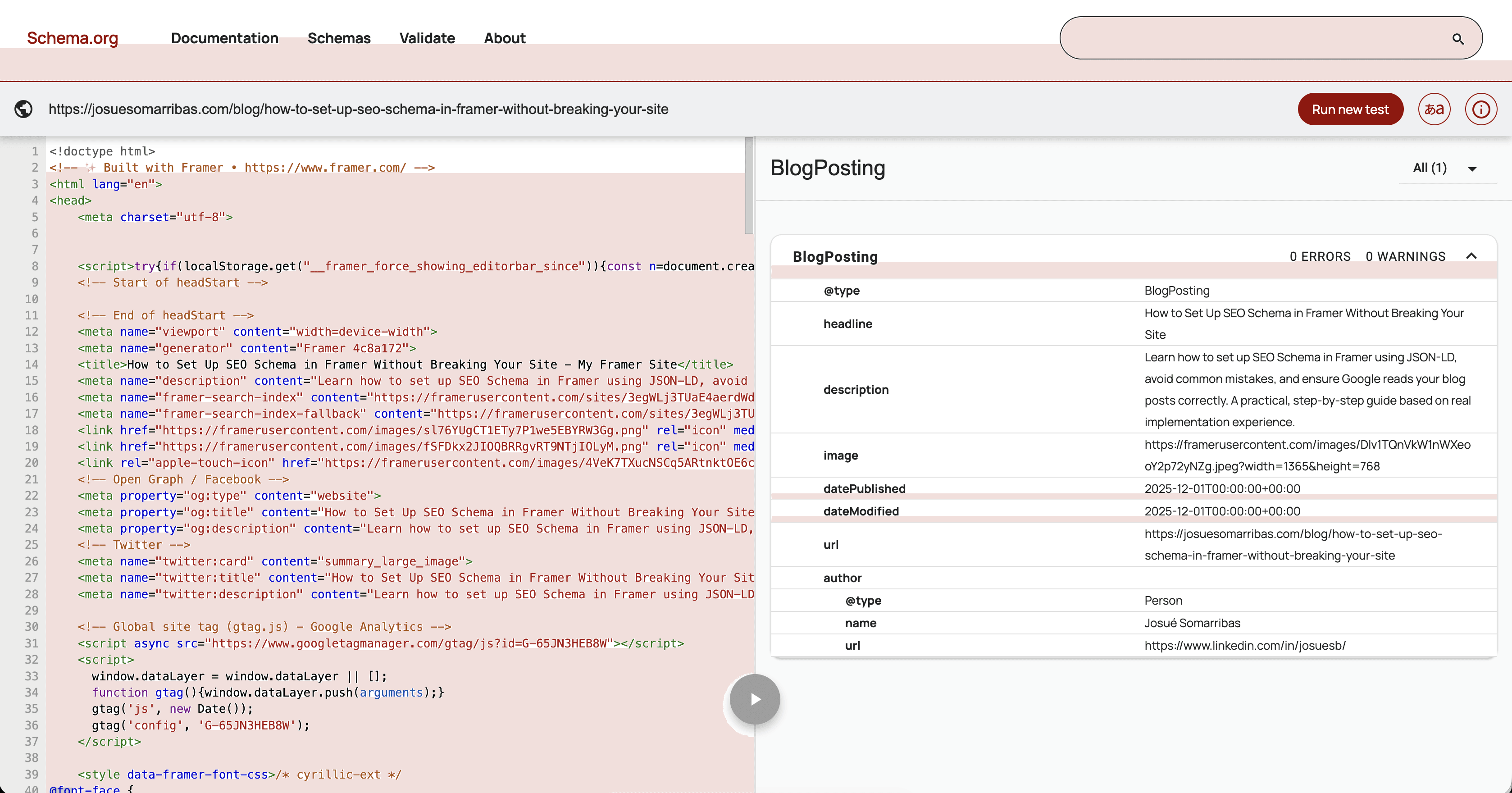
This one is stricter about syntax and great for catching formatting problems.
Run both and confirm:
no critical errors
no broken JSON
no missing commas
dates formatted correctly
image URL is valid
the author block is recognized
If both tools confirm your markup, you’re done.
Where to Learn More About Structured Data (Google’s Official Guide)
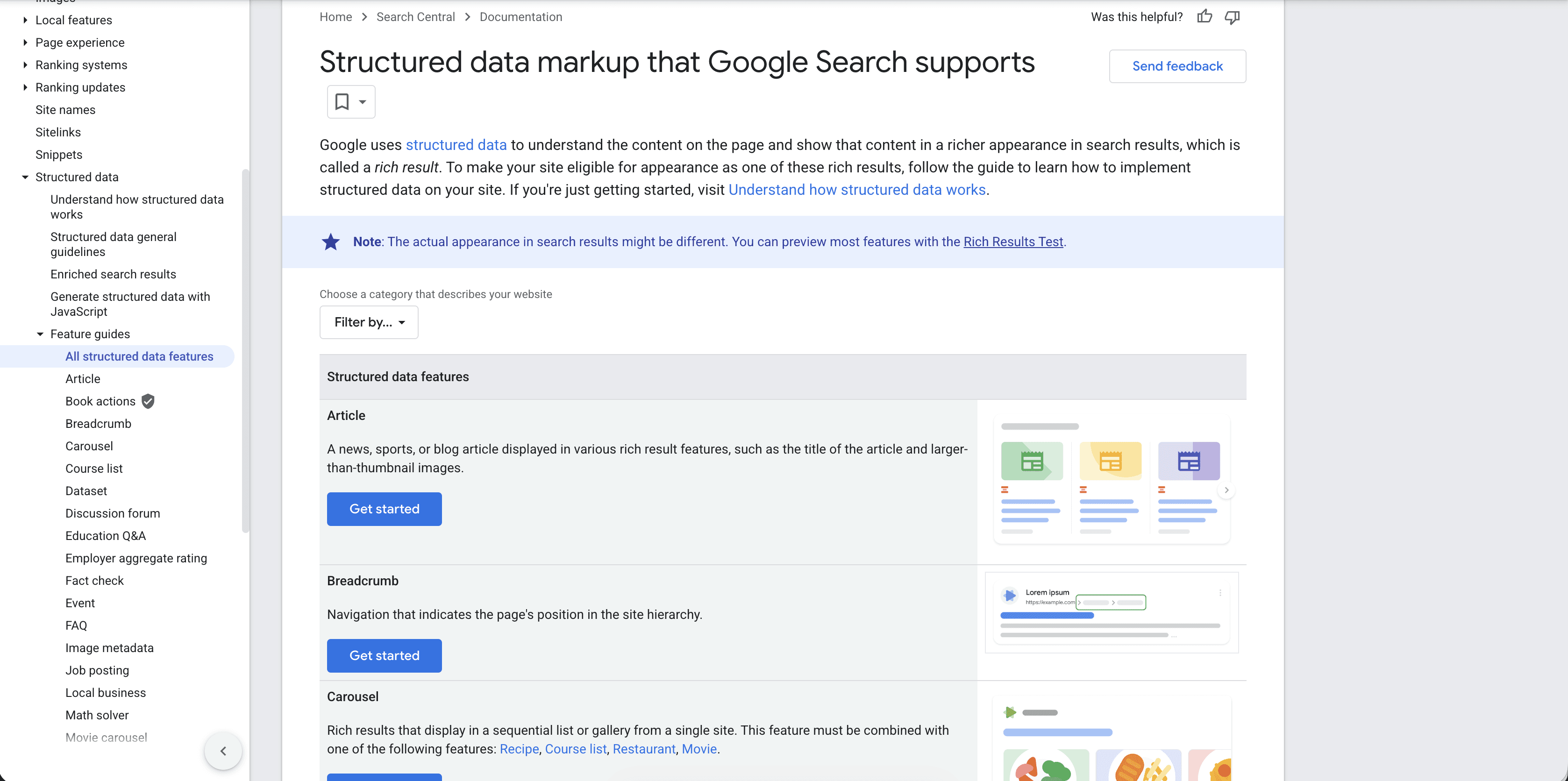
If you want to go deeper than basic BlogPosting markup, Google maintains an excellent, constantly updated catalog of all the structured data features they support. It’s called the Search Gallery, and it’s the closest thing to a “master list” of Schema types you can implement.
You can access it here:
https://developers.google.com/search/docs/appearance/structured-data/search-gallery
The gallery breaks down every supported Schema category with visual examples, required fields, optional enhancements, and implementation notes. It covers everything from simple article markup to more specific types like:
Breadcrumbs
FAQs
Courses
Recipes
Events
How-to guides
Product listings
Image metadata
Job postings
Video information
Ratings and reviews
Even if you’re only using BlogPosting for now, it’s worth scrolling through the gallery to understand what Google considers valid and what kinds of structured information your site might use in the future. The documentation is clean and approachable, and each section includes real snippets you can adapt.
This is basically the reference I wish I had checked earlier, because it makes the entire Schema landscape feel a lot more organized.
Final Thoughts
Setting up structured data in Framer is one of those tasks that becomes straightforward once you understand where it fits and how Framer expects you to write it. The key is to respect the format, escape all CMS values, and double-check your live output before assuming everything works.
If you follow the template above, your blog posts will be properly defined as BlogPosting objects, complete with author details, dates, images, and canonical URLs—all in a format Google understands.
If you’re migrating a blog into Framer or want someone to review your Schema setup, you can always reach out.
Looking for Someone Who Can Do This on Your Team?
I write these breakdowns because it's what I do: find the real bottlenecks (not the obvious ones) and fix them with data.
If your team needs someone who can:
Diagnose conversion problems with data, not opinions
Ship fixes with measurable impact in 30-60 days
Move between strategy, analysis, and execution
Let's talk.

Josue Somarribas
Product Designer especializado en conversión y crecimiento
Contact